
WoW Forever Not Launching? 6 Easy Fixes for PC
Is WoW Forever not launching on Battle.net? Some players report that the Play button switches to "Launching" before returning to "Play" without opening the game. Others experience WoW Forever crashes on startup, a game window that never appears, or error 0xC0000005. Whether WoW Forever won't launch or gets stuck on launching, this post covers 6 useful fixes for WoW Forever launch issues on Windows PC.
Why Is WoW Forever Not Launching?
WoW Forever may fail to launch due to Battle.net conflicts, corrupted game files, outdated graphics drivers, or antivirus interference. These issues can cause startup crashes or leave the game stuck on "Launching."
Here are the common symptoms and possible causes:
| Problem | Possible Cause |
|---|---|
| Stuck on Launching, then returns to Play | Battle.net or background process conflict |
| WoW Forever won't open | Corrupted game files or antivirus interference |
| Game crashes on startup | Driver or software conflicts |
| Error 0xC0000005 | Windows access violation, possibly related to software or memory issues |
| Play button greyed out or not working | Incorrect game version, account access, or launch availability |
Note: WoW Forever launches on November 4, 2026, at 3:00 PM PST. A disabled Play button before launch may be normal. After launch, check WoW Forever server status for possible outages.
How to Fix WoW Forever Not Launching on PC
Follow these six fixes to resolve WoW Forever launch issues on Battle.net.
Fix 1. Check WoW Forever Game Version and Updates
An outdated Beta client, incorrect game version, or missing update may prevent WoW Forever from launching on Battle.net. Select the correct release client and make sure the game is up to date.
Step 1. Open Battle.net and select World of Warcraft from your game library.
Step 2. Open the Game Version dropdown and select World of Warcraft: Forever instead of an older Beta or test client.
Step 3. Click the gear icon next to Play, select Check for Updates, and install any available updates.
Tip: Having trouble installing or updating the game? Check our WoW Forever Install Button Greyed Out guide or WoW Forever slow download fixes for Battle.net installation and download issues.
Fix 2. Restart Battle.net and End Background Processes
WoW Forever stuck on Launching before returning to Play may indicate a Battle.net Agent or background process conflict. Completely restarting the launcher can clear stuck processes and resolve temporary startup issues.
Follow these steps:
Step 1. Close Battle.net completely, including its icon in the Windows system tray.
Step 2. Press Ctrl + Shift + Esc to open Task Manager. Find and end any remaining Battle.net, Blizzard Update Agent, or World of Warcraft processes.
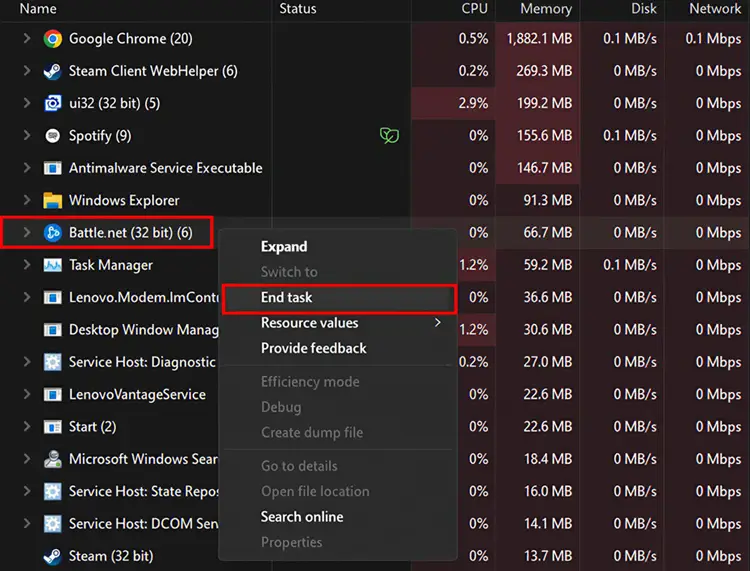
Step 3. Restart your PC, reopen Battle.net, and click Play to launch WoW Forever again.
Fix 3. Scan and Repair WoW Forever Game Files
Corrupted or missing game files can prevent WoW Forever from opening or cause crashes on startup. Use Battle.net's built-in Scan and Repair feature to detect and repair damaged files.
Follow these steps:
Step 1. Open Battle.net, select World of Warcraft, and choose the WoW Forever release client.
Step 2. Click the gear icon next to Play and select Scan and Repair.
Step 3. Click Begin Scan, wait for the repair to finish, and launch WoW Forever again.
Tip: Keep Battle.net open during the repair process. Continue with the next fixes if WoW Forever still won't launch after repairing the game files.
Fix 4. Check Antivirus and Firewall Interference
Antivirus software may prevent WoW Forever from launching. Some Beta players reported startup issues caused by Trend Micro and other security programs.
Follow these steps:
Step 1. Go to Windows Settings > Privacy & security > Windows Security > Virus & threat protection.
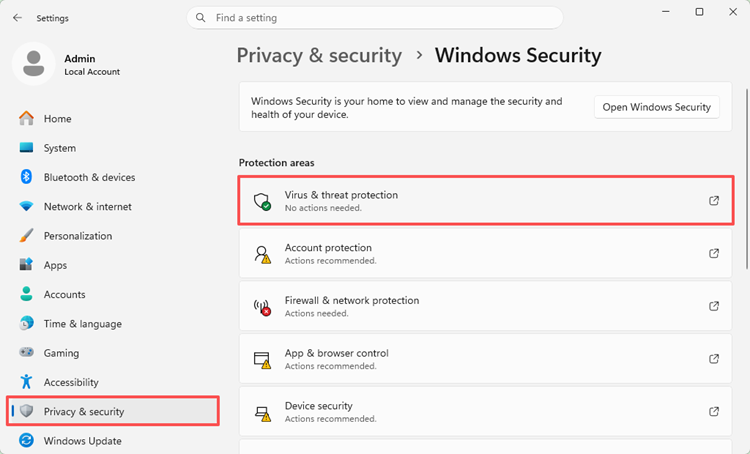
Step 2. Click Protection history and check for blocked or quarantined WoW Forever files.
Step 3. Review any detected WoW Forever files. Restore a quarantined file only after confirming it is legitimate and safe.
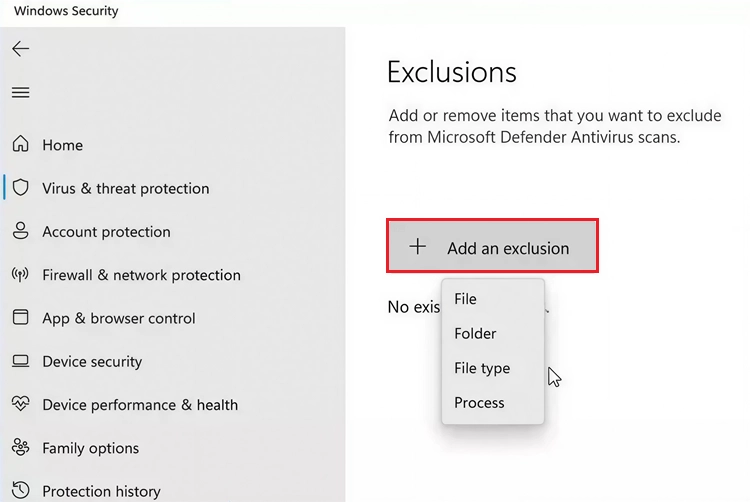
Restart Battle.net and try launching WoW Forever again.
Fix 5. Update Graphics Drivers and Check GPU Compatibility
Outdated graphics drivers or unsupported GPUs may cause WoW Forever startup crashes, black screens, or launch failures. Check your graphics hardware and update your drivers.
Follow these steps:
Step 1. Press Windows + X, open Device Manager, and expand Display adapters to identify your GPU.
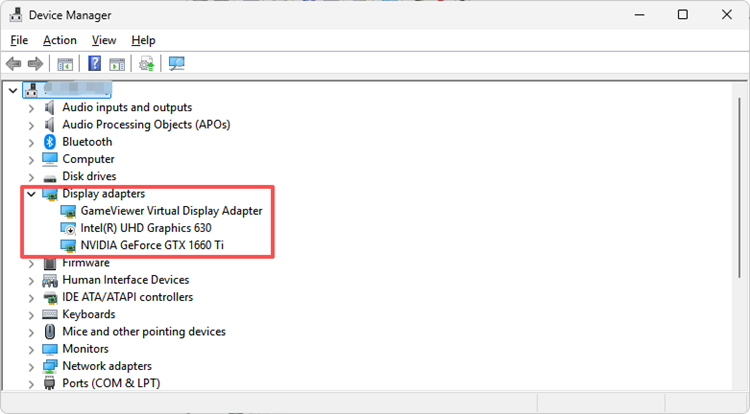
Step 2. Check your GPU against the official WoW Forever system requirements to confirm compatibility.
Step 3. Download the latest compatible driver from NVIDIA, AMD, or Intel. Install it, restart your PC, and launch WoW Forever again.
Tip: Does WoW Forever open but crash during character loading or gameplay? Check our WoW Forever crashing guide for loading-screen freezes, Error #109, and GPU-related crashes.
Fix 6. Disable Background Overlays and Reset WoW Interface
Background overlays and corrupted game settings can interfere with WoW Forever startup. Close conflicting programs first, then reset the game's interface settings to rule out AddOn or configuration problems.
Follow these steps:
Step 1. Close Discord Overlay, NVIDIA Overlay, MSI Afterburner, RivaTuner, and third-party AddOn managers.
Step 2. Close Battle.net and open the WoW Forever installation folder. Navigate to the game version folder and locate the Cache, Interface, and WTF folders.
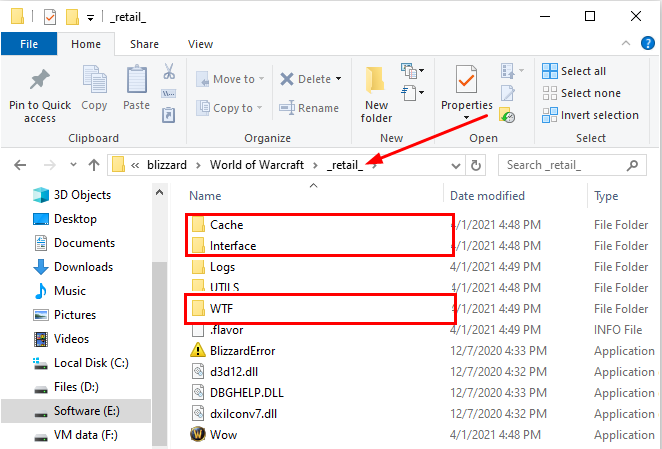
Step 3. Rename them to CacheOld, InterfaceOld, and WTFOld. Restart Battle.net and launch WoW Forever again.
Tip: Back up the Interface and WTF folders before renaming them. This helps preserve your AddOns, keybindings, and custom settings.
[Bonus] Optimize WoW Forever Connection With LagZapper
Once WoW Forever is running, high ping, packet loss, and unstable connections can still disrupt your gameplay. Network issues may cause delayed abilities, lag spikes, or unexpected disconnections, especially on distant servers.
LagZapper is a PC game booster that optimizes network routes and improves connection stability. With smart routing and one-click boosting, it helps reduce network-related lag for smoother WoW Forever gameplay.
Why Use LagZapper for WoW Forever?
- Lower WoW Forever Ping: Fix WoW Forever high ping with optimized routes for faster gameplay response.
- Reduce WoW Forever Lag: Improve connection quality to reduce lag and minimize network-related delays.
- Reduce WoW Forever Packet Loss: Stabilize network routes to reduce packet loss and improve connection reliability.
- One-Click WoW Forever Boost: Select a game server and optimize your network connection with one click.
How to Boost WoW Forever With LagZapper
Follow these three steps to optimize your WoW Forever connection with LagZapper.
Step 1. Download and Install LagZapper
Download LagZapper for Windows and complete the installation.
Step 2. Search for WoW Forever
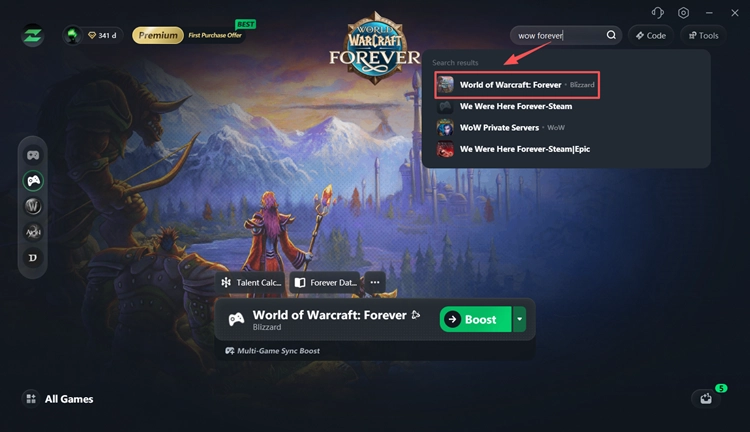
Open LagZapper, search for World of Warcraft: Forever, and select the game.
Step 3. Select a Server and Click Boost
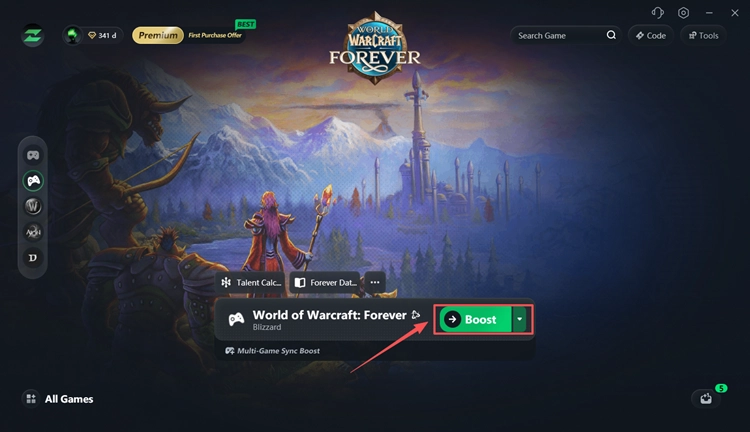
Choose a recommended server or node and click Boost. Once optimization is active, launch WoW Forever through Battle.net.
The Bottom Line
WoW Forever not launching can often be fixed by selecting the correct Battle.net game version, restarting background processes, or repairing corrupted files. For persistent startup crashes, check security software, graphics drivers, and conflicting overlays.
Once the game is running, download LagZapper to optimize your network connection, lower ping, reduce packet loss, and enjoy smoother WoW Forever gameplay.
FAQs About WoW Forever Not Launching
Q1. Why is WoW Forever not launching on Battle.net?
Common causes include Battle.net conflicts, corrupted game files, antivirus interference, and incompatible hardware.
Q2. How do I fix WoW Forever stuck on Launching?
End Battle.net processes in Task Manager, restart your PC, and run Scan and Repair.
Q3. Why does WoW Forever go from Launching back to Play?
The game may crash before opening. Check background processes, antivirus settings, and graphics drivers.
Q4. How do I fix WoW Forever error 0xC0000005?
Error 0xC0000005 is a Windows access violation error. Repair game files, check conflicting software, and update graphics drivers to troubleshoot the issue.
Q5. Why is my WoW Forever Play button greyed out?
Error 0xC0000005 is a Windows access violation error. Repair game files, check conflicting software, and update graphics drivers to troubleshoot the issue.
Q6. Can my graphics card prevent WoW Forever from launching?
Yes. Unsupported GPUs or outdated drivers may cause startup failures. Check the official system requirements.